
Once you've started recording in the Trace Teams app, you can start a livestream:
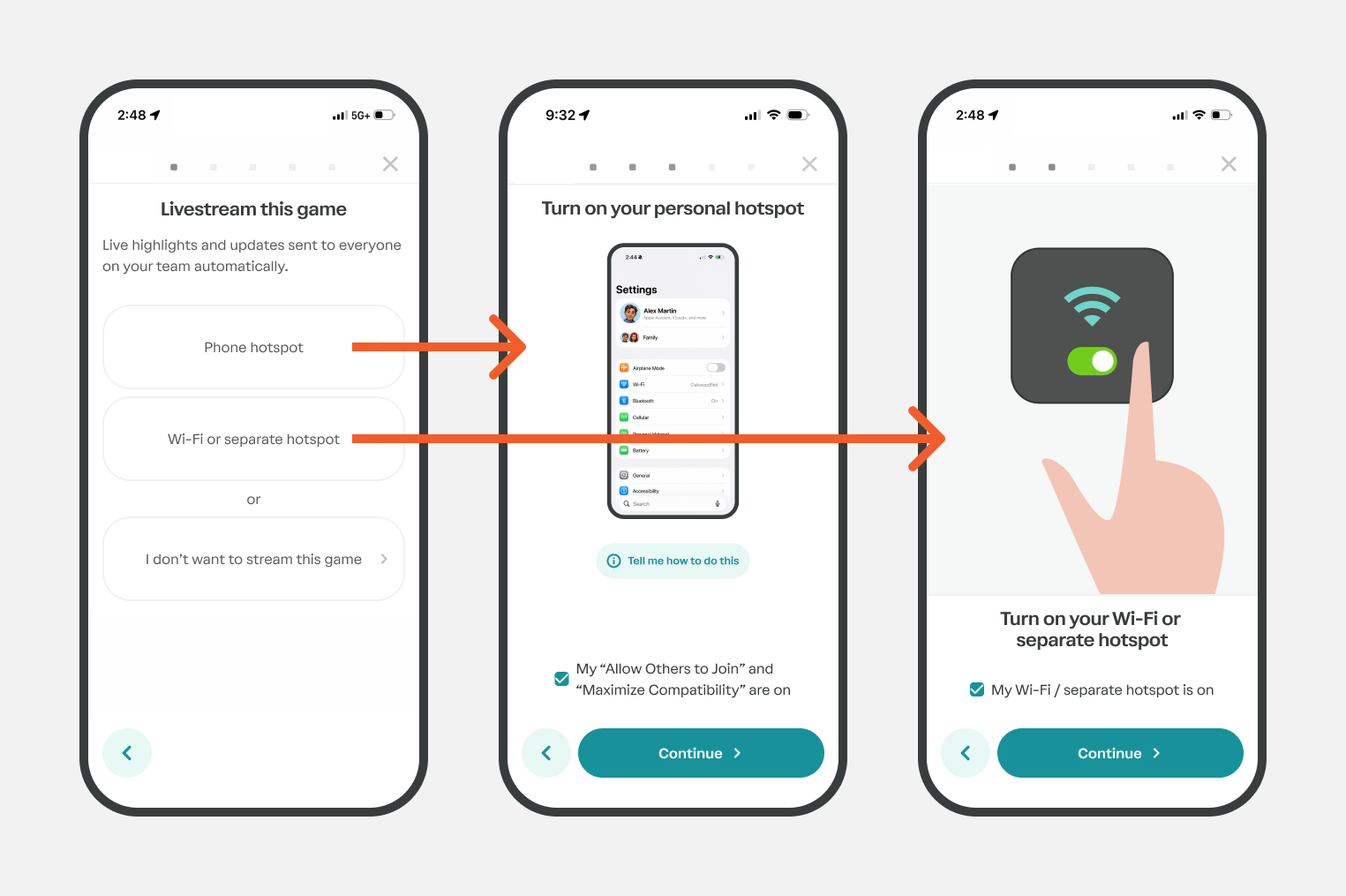
1. Choose how you'll connect
Write a caption...
You'll see three options:
Phone hotspot: Use the hotspot on your phone.
Wi-Fi or separate hotspot: Connect to a nearby Wi-Fi network or a dedicated hotspot.
I don't want to stream this game: Record your game without a livestream. (No live updates sent.)
Option 1: Connect using your phone's hotspot
Tap Phone hotspot.
Turn on your phone's Personal Hotspot.
Note: if it's already on, turn it off and back on.Make sure:
Allow Others to Join is turned on.
Maximize Compatibility is turned on (iPhone).
Check the confirmation box in the app.
Tap Continue.
The app will connect to your camera and start the livestream automatically.
Option 2: Connect using Wi-Fi or a separate hotspot
Tap Wi-Fi or separate hotspot.
Wait while Trace scans for nearby networks (this can take up to 20 seconds).
Connect to your device
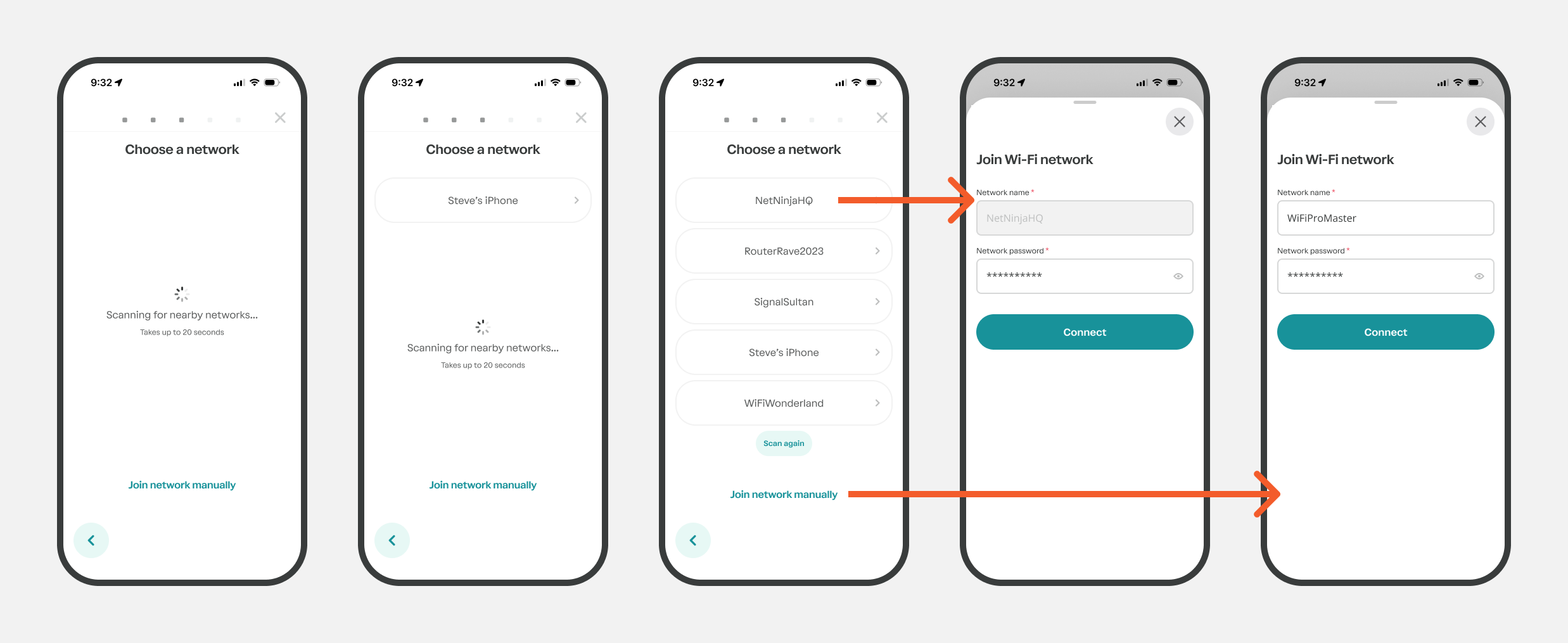
Select your Wi-Fi network from the list.
If you don't see your network, tap Scan again.
You can also tap Join network manually to enter your network name and password.
Enter your Wi-Fi password if prompted.
Tap Connect.
The app will connect to your camera and start the livestream automatically.
Starting the livestream
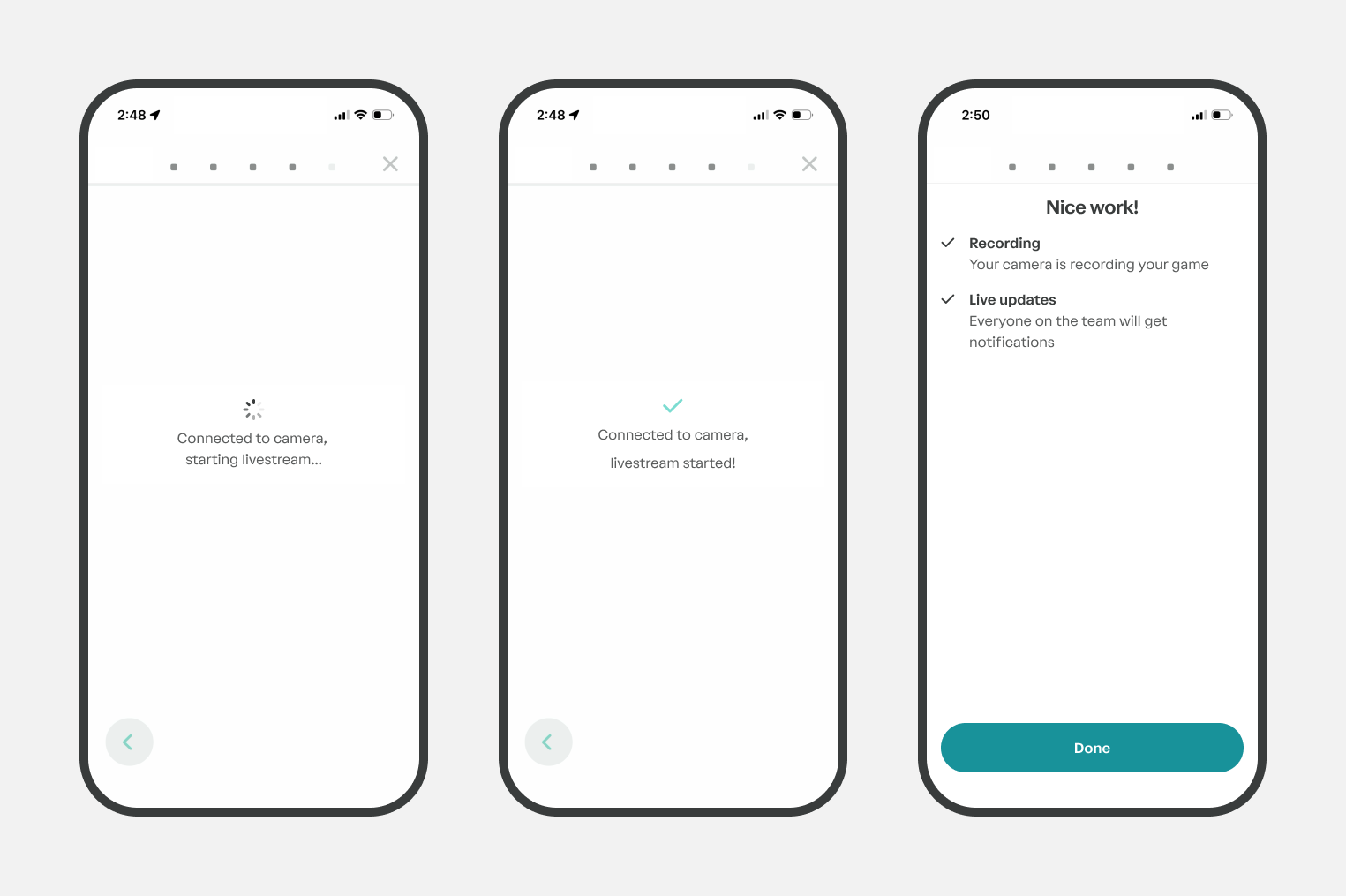
Once your camera is connected:
You'll see Connected to camera, starting livestream...
After a few seconds, you'll see Connected to camera, livestream started!
Tap Done when you see the confirmation screen.
Your game is now:
✅ Recording
✅ Sending live updates to everyone connected to your team